
Synthetic Installer
Synthetic Installer
One window that sets up every Synthetic tool you own — the MCP servers for your AI apps and the panels inside Adobe — and keeps them up to date. No terminal, no config files.
What it does
- Installs the tools your account has a license for, only where you choose.
- Connects them to your AI apps (Claude, Cursor, Codex and the others it finds on your PC).
- Installs the Adobe panels for After Effects, Premiere Pro, Photoshop and Illustrator.
- Keeps everything up to date and shows what is installed on one Home screen.
- Repairs and removes cleanly: uninstall one product or everything, always with a preview first.
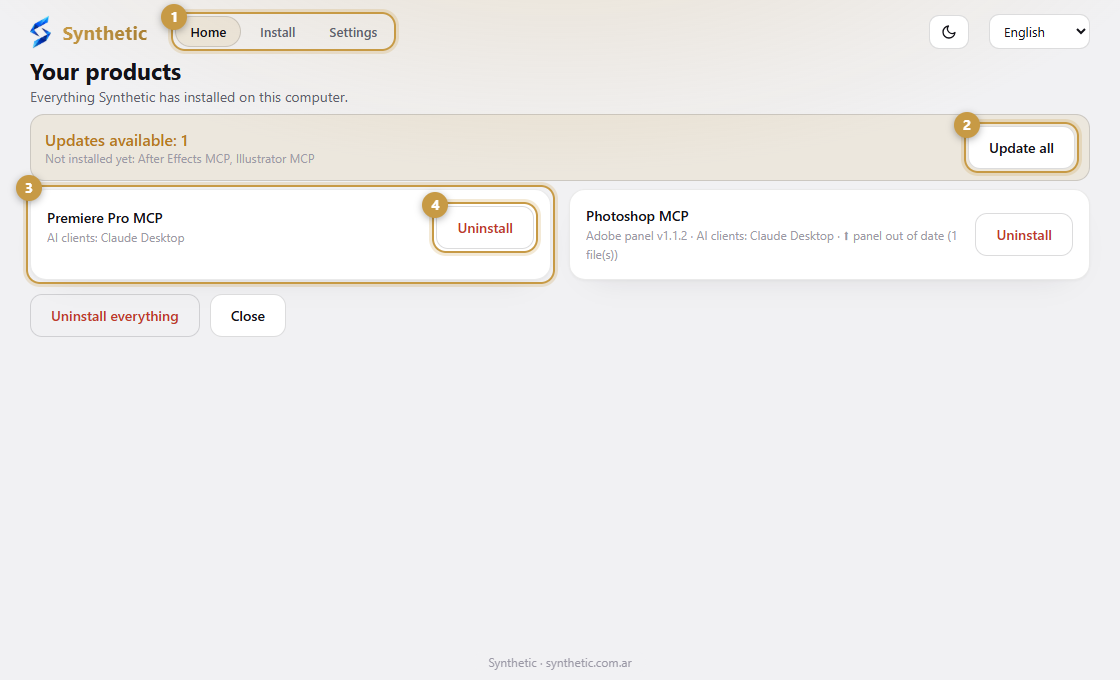
- 1The tabs: Home, Install and Settings.
- 2The status card. It says whether everything is up to date; if not, Update all updates only what you already have.
- 3One card for every installed product, with its versions.
- 4Uninstall removes only that product, and always shows a preview first.
Screenshots come from a demo PC, so the products and versions you see are examples.
Get it
Sign in at synthetic.com.ar, open Dashboard → Downloads and download Synthetic Setup for Windows or for Mac (Apple Silicon or Intel).
Synthetic Setup finds the AI apps and the Adobe apps on your computer by itself: there is nothing to configure by hand.
On a Mac
Open the downloaded .dmg and drag Synthetic Setup to Applications. The first time, open it from System Settings → Privacy & Security and press Open Anyway: the app is not notarized by Apple yet. Not sure which Mac you have? Apple menu → About This Mac: a chip named Apple M… is Apple Silicon, otherwise it is Intel.
Requirements
- Windows 10 or 11 (64-bit), or macOS 11 or later (Apple Silicon or Intel).
- A Synthetic account. Products you have no license for are simply not offered.
- Node.js is not required: if your PC has none, the installer sets up its own private copy and checks it against the official fingerprint.
- An internet connection, to sign in and to download the tools.