
Synthetic Installer
First install
The first time, you choose what goes on this PC. After that, updates need no choices at all.
1
Open the app and sign in
Type the email of your Synthetic account. We send you a code; type it in. The app remembers you, so next time it opens already signed in and loads your licenses again: a license you buy later simply shows up.
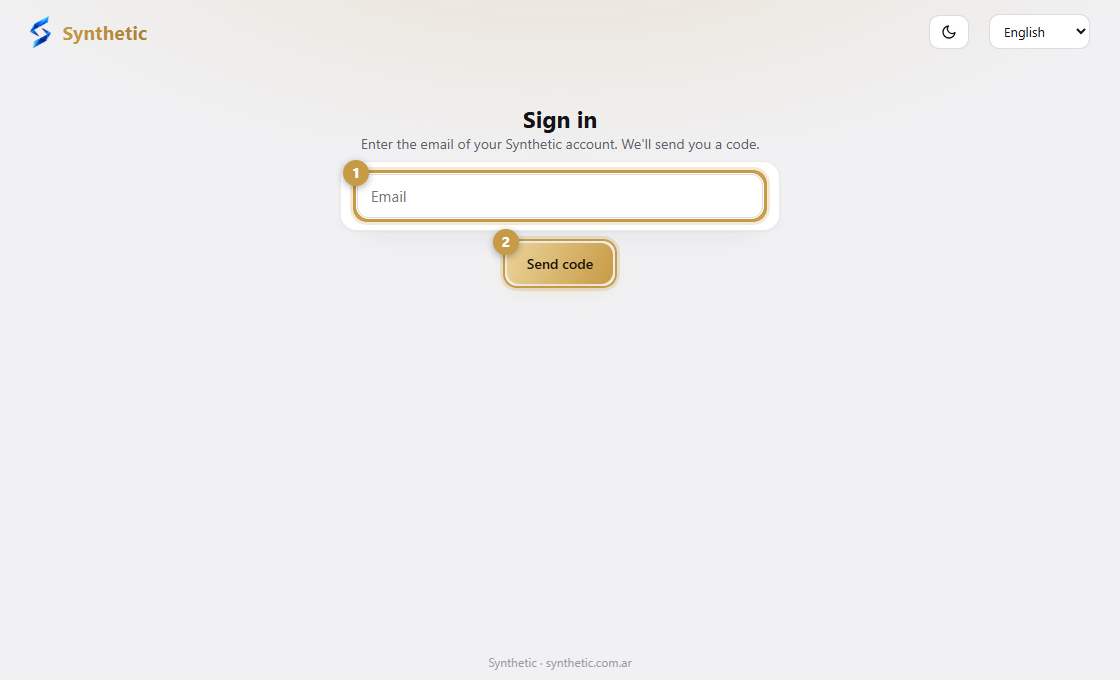
- 1Type the email of your Synthetic account.
- 2Press Send code. A code arrives in your inbox: type it and you are in.
2
Choose your products
Every product you have a license for is ticked. Untick what you do not want on this computer.
3
Choose your AI apps
The installer lists the AI apps it found (Claude Desktop, Claude Code, Cursor, Codex, Gemini CLI, Antigravity…). Tick the ones that should get your Synthetic tools. The ones it did not find appear under Not detected.
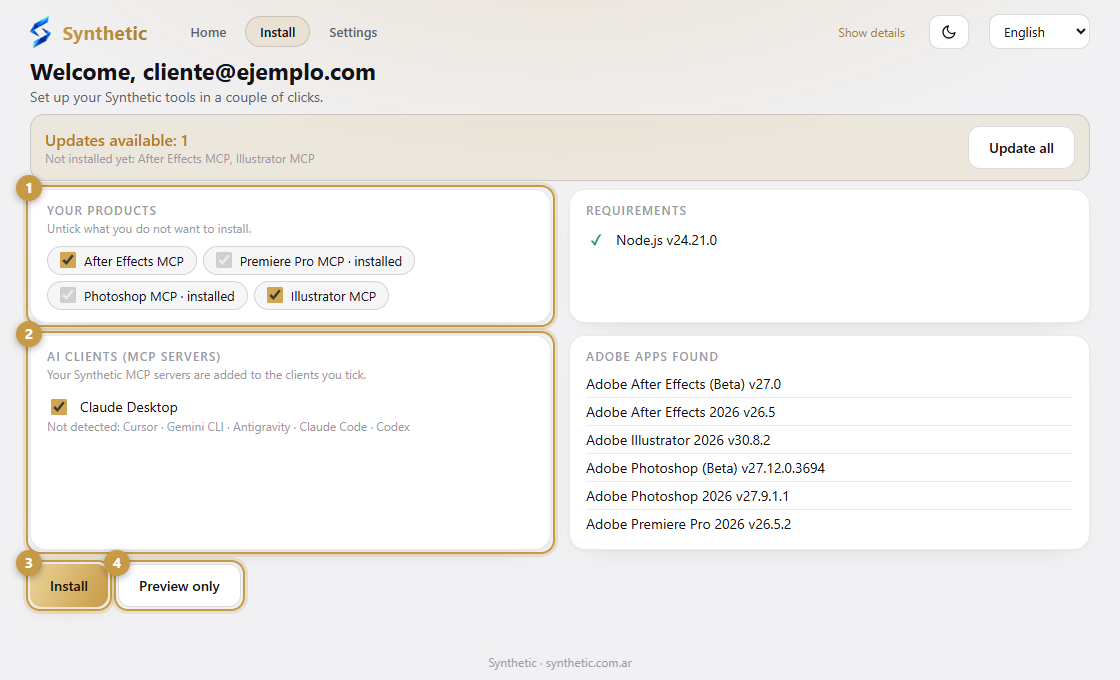
- 1Your products. Untick what you do not want on this computer.
- 2Your AI apps. Tick the ones that should get your Synthetic tools.
- 3Install sets everything up.
- 4Preview only shows what would happen without changing anything.
4
Pick the Adobe version (only if you have several)
If you have more than one version of an Adobe app, the installer asks which one the tool should use. The newest is the default. The panel itself is installed for your user and shows up in every compatible version.
5
Install
Press Install. Every line says what happened: added, up to date, replaced, or a problem with its reason. Preview only shows the same list without changing anything.
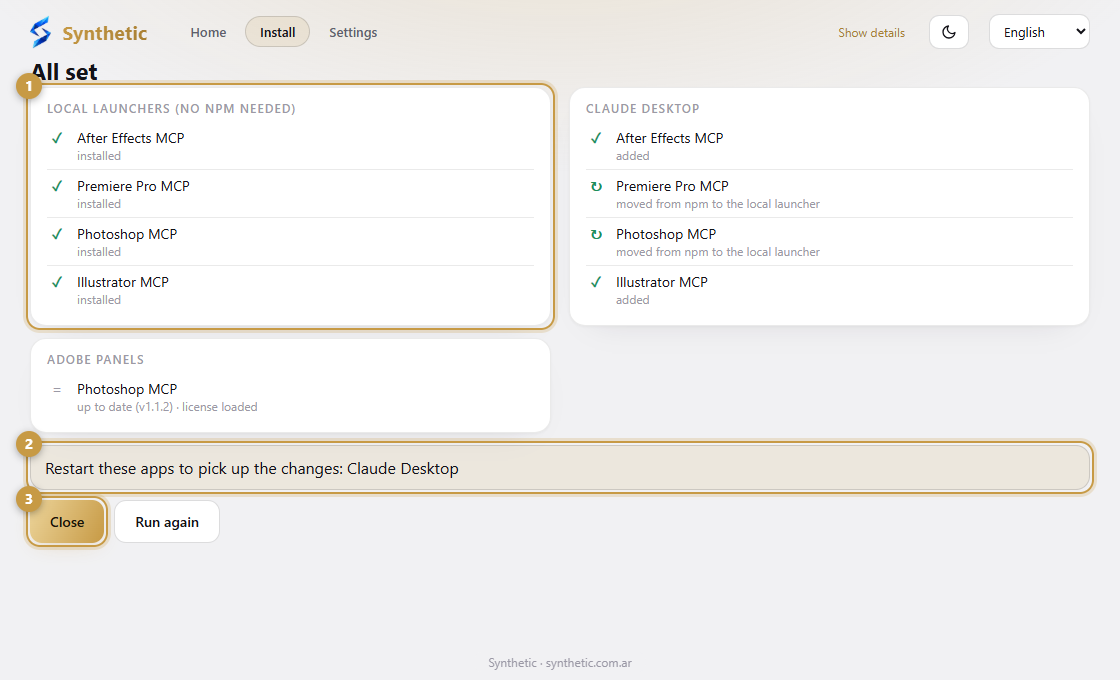
- 1What happened with each step, in plain words.
- 2The apps to restart so they pick up the changes.
- 3Close ends the app. You can open it again whenever you want.
6
Restart your apps
When it finishes, restart the apps it lists (your AI app, and the Adobe app if a panel was installed) so they pick up the changes. In Adobe, open the panel from the Window → Extensions menu.
Screenshots come from a demo PC, so the products and versions you see are examples.